

Integration documentation
Bubble
Integrating your Jaano.ai chatbot with Bubble allows you to easily add conversational AI to your Bubble applications. By embedding a simple script, you can enable real-time interactions, automate responses, and provide 24/7 support directly within your web app — no coding required.
Follow this step-by-step guide to integrate your Jaano.ai chatbot into Bubble.
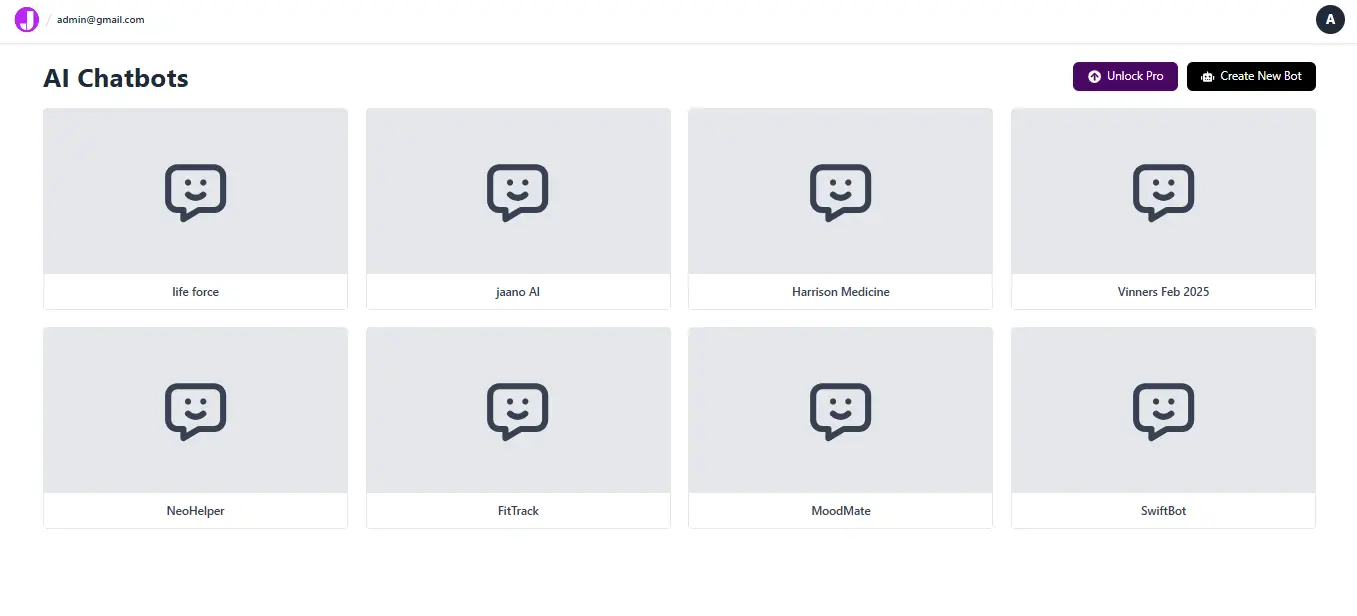
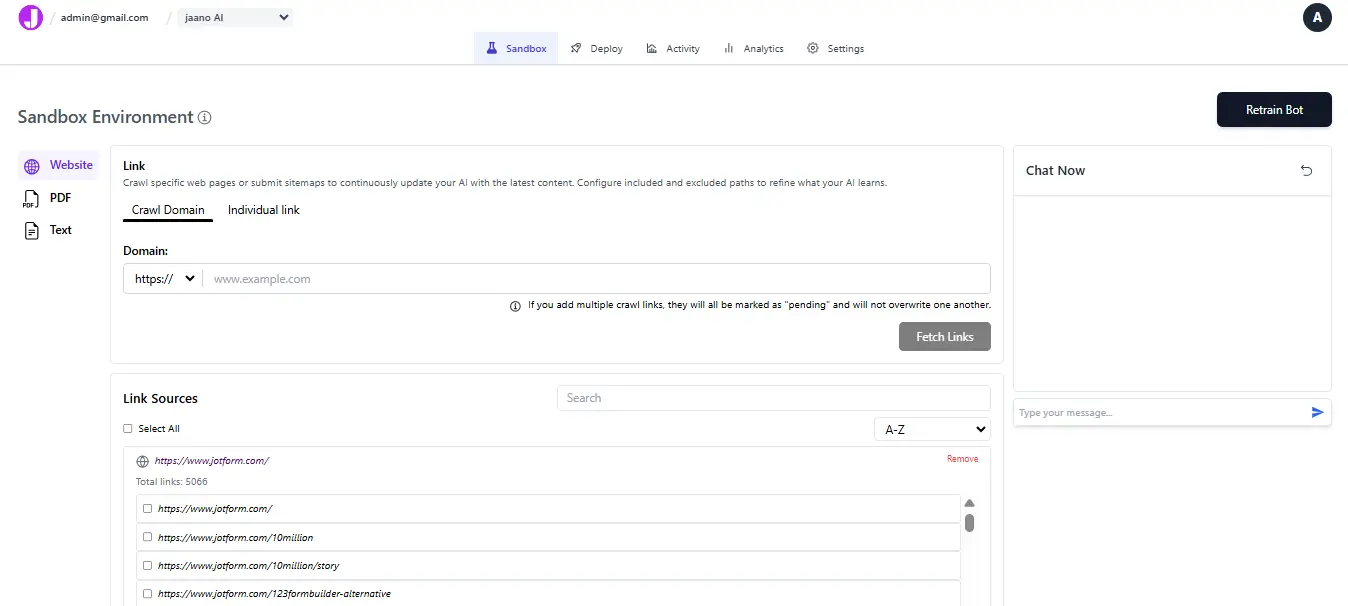
Step 1: Set Up Your Jaano.ai Chatbot
- Sign in to your Jaano.ai dashboard.
- Create a new bot or select an existing one.
- Train your bot using supported input types such as text snippets, URLs or PDFs.
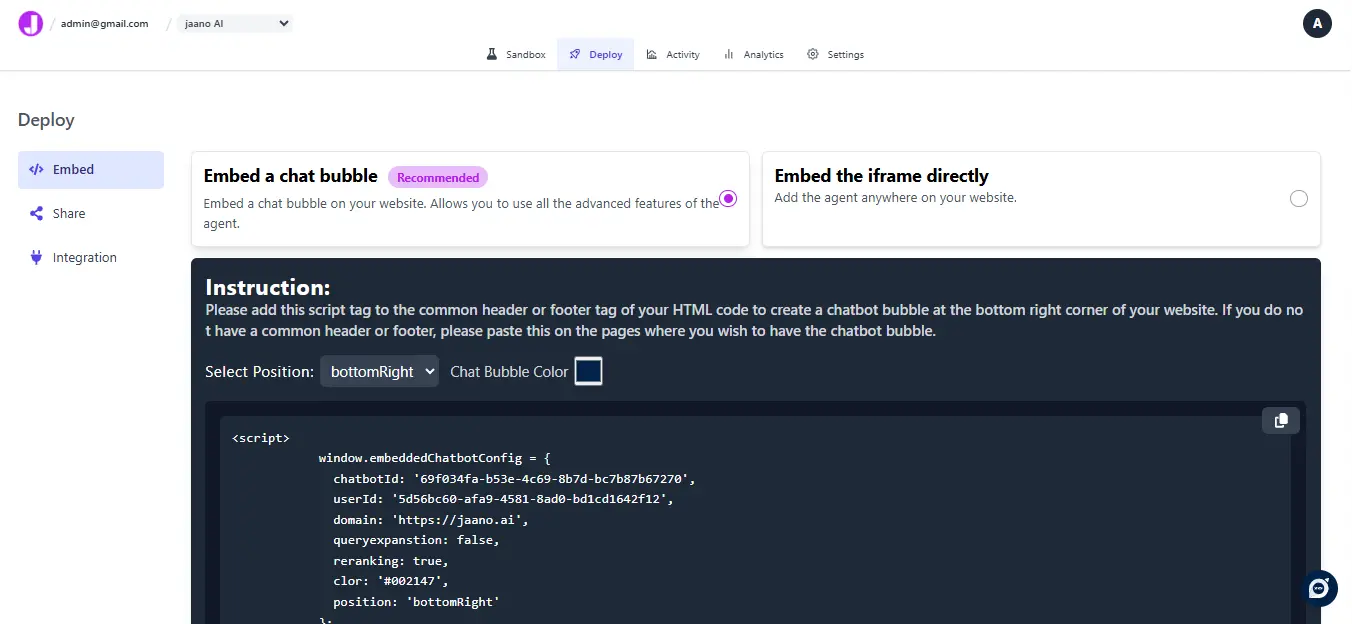
- After training, navigate to the 'Deploy' → 'Embed' tab in the bot's settings.
Step 2: Copy Your Jaano.ai Embed Script
- In the Embed section of your bot, choose either 'Embed a chat bubble' or 'Embed directly using iframe'.
- Click 'Copy Script' to copy your bot’s embed code.
- This script will add a floating chatbot bubble or iframe to your site.
Step 3: Embed Jaano.ai Chatbot into Your Bubble App
- Login to your Bubble dashboard.
- Select the app you want to embed the chatbot in and click 'Edit' or 'Launch Editor'.
- In the Bubble Editor, go to 'Visual Elements' and drag the HTML element to your desired section.
- Double-click the HTML element to open the code editor.
- Paste the copied Jaano.ai embed script.
- Click 'Preview' to test the chatbot.
🎉 Success
- You should now see the Jaano.ai chatbot active on your Bubble app, typically floating in the bottom corner.
🛠️ Optional: Customize Bot Appearance
- Go to 'Jaano.ai Dashboard → Select Bot → Settings → Chat Interface'.
- Change the color theme, position, and other appearance options.